What a Spotify Canvas is
When someone plays your song in the Spotify app on their phone, the Now Playing screen can show a short looping video instead of the still cover. That loop is the Canvas. It has no sound of its own: Spotify plays your song, and the Canvas repeats behind it for as long as the song lasts. You add it yourself, per song, in Spotify for Artists.
The size and length Spotify asks for
- Shape: vertical, 9:16.
- Size: 720 to 1080 pixels tall, so 720×1280 or 1080×1920.
- Length: 3 to 8 seconds. It repeats, so the end has to flow back into the start.
- File: an MP4 video (a still JPG is also accepted, but then it does not move).
The player draws the song title, buttons and lyrics over the bottom and the edges, so keep faces, logos and anything important near the middle.
Make one in 5 steps
- Open the Canvas maker in Chrome, Edge or Safari. It runs in your browser: no account, and your files are not uploaded.
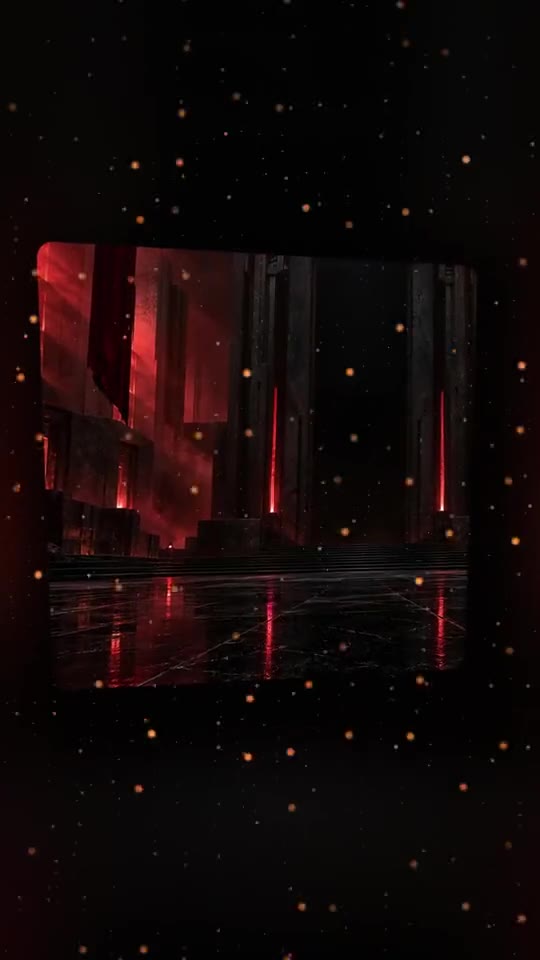
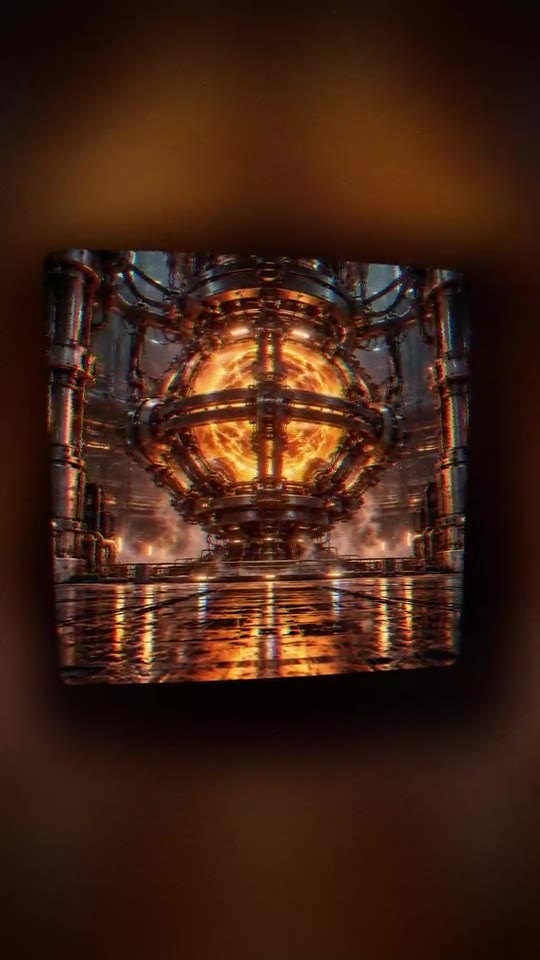
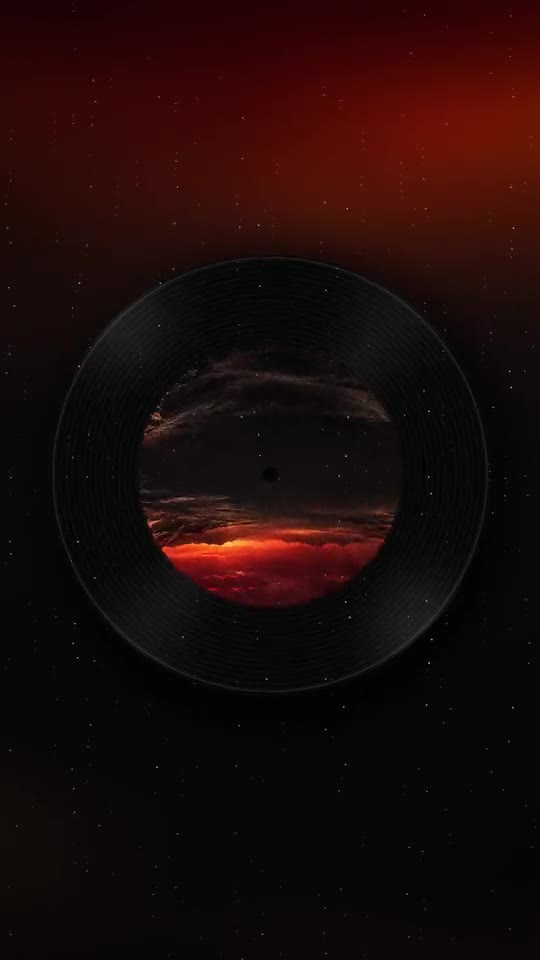
- Pick a starting point. Start from one of the 12 templates, from your cover art (a floating card, a spinning vinyl or a full-frame image with a slow camera move), from free stock video, or from your own footage.
- Choose the loop type (see below) and the length: 8 seconds is the most room Spotify gives you.
- Add a look: rain, snow, embers, dust or light leaks, color, and effects such as mirror, glitch or slow motion. Add your song and turn on React to the song, and the motion follows the bass of the part that loops. The Canvas stays silent, but it moves with the music Spotify plays.
- Press Check the seam, then export. The export checklist confirms the size, the length, the loop type and that the file is small (under 10 MB).
Tip: a Canvas that moves slowly usually looks better than a busy one. People look at it for the whole song, not for one second like an ad.
The three loop types
Spotify describes three ways a Canvas can loop. The Canvas maker does all three:
- Smooth (continuous): the last frame leads straight into the first, so the loop never seems to restart. Everything the maker generates moves a whole number of cycles per loop, so cover-art canvases are seamless.
- Hard cut: it jumps back to the start on purpose. This works when the cut lands on a beat.
- Rebound: it plays forwards, then backwards. Good for footage that cannot loop on its own, and it needs only half as much footage.
Check the seam plays only the last second and the first second, again and again, so you can see the moment it loops without waiting through the middle.
What to avoid
- Text with links, @handles or "pre-save now": Spotify removes canvases with calls to action. The maker warns you if your text looks like one.
- Fast cuts and strong flashing: Spotify advises against them. The export checklist warns when strobe or flash is set high.
- Talking or singing footage: it will never be in time with the song as it repeats.
- The song title and artist name: the player already shows them, and Spotify suggests leaving them out. A small logo is fine.
Add it to your song in Spotify for Artists
- Open Spotify for Artists (the app or the website) and sign in with the artist account or a team account.
- Go to Music, find the song (released, or upcoming once it appears there) and open it.
- Choose Canvas, upload the MP4 you exported, check the preview and publish it.
It can take a little while to appear for listeners, and only listeners on the mobile app see it. Use one Canvas per song, or the same one across a whole EP for a matching look.
Free or Full Access
Canvases are free and unlimited at 720×1280 with a small watermark. Full Access ($4.99 once, no subscription) removes the watermark, exports 1080×1920, and adds a Story / TikTok version: the loop with the best part of your song, ready to post.
Making a video for YouTube too?
A Canvas is only 8 seconds. For a full-length video that reacts to the whole song, see how to make a music visualizer, or plan the rest of the release with the release checklist.